Help:Displaying a formula: Difference between revisions
Caleb Cooper (talk | contribs) |
Caleb Cooper (talk | contribs) No edit summary Tag: 2017 source edit |
||
| (19 intermediate revisions by the same user not shown) | |||
| Line 1: | Line 1: | ||
{{TOCright}} |
{{TOCright}}{{Wikipedia how-to}}{{Commons Import}} |
||
{{Wikipedia how-to}} |
|||
{{Commons Import}} |
|||
[[File:Editing a formula using VisualEditor.png|thumb|This screenshot shows the formula {{math|1=''E'' = ''mc''{{smallsup|2}}}} being edited using [[VisualEditor]]. The visual editor shows a button that allows to choose one of three offered modes to display a formula.]] |
|||
There are three methods for displaying formulas in Wikipedia: raw HTML, HTML with math templates (abbreviated here as {{tl|math}}), and a subset of LaTeX implemented with the HTML markup <syntaxhighlight lang="html5" inline><math></math></syntaxhighlight> (referred to as ''LaTeX'' in this article). Each method has some advantages and some disadvantages, which have evolved over the time with improvements of MediaWiki. The manual of style for math has not always evolved accordingly. So the how-to recommendations that appear below may differ from those of the manual of style. |
|||
[[File:Editing a formula using VisualEditor.png|thumb|This screenshot shows the formula {{math|1=''E'' = ''mc''{{smallsup|2}}}} being edited using [[wikipedia:VisualEditor|VisualEditor]]. The visual editor shows a button that allows to choose one of three offered modes to display a formula.]] |
|||
Math is rendered in EMEA Support Wiki's by TeX using Mathoid. There are three methods for displaying formulas in mediawiki: raw HTML, HTML with math templates (abbreviated here as {{tl|math}}), and a subset of LaTeX implemented with the HTML markup <syntaxhighlight lang="html5" inline><math></math></syntaxhighlight> (referred to as ''LaTeX'' in this article). Each method has some advantages and some disadvantages, which have evolved over the time with improvements of MediaWiki. The manual of style for math has not always evolved accordingly. So the how-to recommendations that appear below may differ from those of the manual of style.<ref>[[mediawikiwiki:Extension:Math/Help:Formula|Extension:Math/Help:Formula (Mediawiki-Wiki)]]</ref> |
|||
<ref>[[metawikimedia:Help:Displaying a formula |Help:Displaying a formula (Wiki-Source)]]</ref> |
|||
<ref>[[wikipedia:Help:Displaying_a_formula |Help:Displaying_a_formula (Wikipedia) ]]</ref> |
|||
<ref>[https://web.archive.org/web/20160305074303/https://www.math.upenn.edu/tex-stuff/cookbook.pdf {{TeX}} Cookbook]{{space}}[[Media:Tex-cookbook.pdf | local copy]]</ref> |
|||
For example, the famous Einstein formula can be entered in raw HTML as <syntaxhighlight lang="html5" inline>{{nowrap|''E'' {{=}} ''mc''<sup>2</sup>}}</syntaxhighlight>, which is rendered as {{nowrap|''E'' {{=}} ''mc''<sup>2</sup>}} (the template {{tl|nowrap}} is here only for avoiding a line break inside the formula). With {{tl|math}}, it can be entered as <syntaxhighlight lang="html5" inline>{{math|''E'' {{=}} ''mc''{{sup|2}}}}</syntaxhighlight>, which is rendered as {{math|''E'' {{=}} ''mc''{{sup|2}}}}. With LaTeX, it is entered as <syntaxhighlight lang="html5" inline><math>E=mc^2</math></syntaxhighlight>, and rendered as <math>E=mc^2</math>. |
For example, the famous Einstein formula can be entered in raw HTML as <syntaxhighlight lang="html5" inline>{{nowrap|''E'' {{=}} ''mc''<sup>2</sup>}}</syntaxhighlight>, which is rendered as {{nowrap|''E'' {{=}} ''mc''<sup>2</sup>}} (the template {{tl|nowrap}} is here only for avoiding a line break inside the formula). With {{tl|math}}, it can be entered as <syntaxhighlight lang="html5" inline>{{math|''E'' {{=}} ''mc''{{sup|2}}}}</syntaxhighlight>, which is rendered as {{math|''E'' {{=}} ''mc''{{sup|2}}}}. With LaTeX, it is entered as <syntaxhighlight lang="html5" inline><math>E=mc^2</math></syntaxhighlight>, and rendered as <math>E=mc^2</math>. |
||
==Use of raw HTML== |
==Use of raw HTML== |
||
| Line 34: | Line 38: | ||
* Use of LaTeX for displayed formulas and more complicated inline formulas |
* Use of LaTeX for displayed formulas and more complicated inline formulas |
||
* Use of LaTeX for formulas involving symbols that are not regularly rendered in Unicode (see [[wikipedia:MOS:BBB]]) |
* Use of LaTeX for formulas involving symbols that are not regularly rendered in Unicode (see [[wikipedia:MOS:BBB]]) |
||
* Avoid formulas in section headings, and when this is a problem, use raw HTML (see [[Finite field]] for an example) |
* Avoid formulas in section headings, and when this is a problem, use raw HTML (see [[wikipedia:Finite field|Finite field]] for an example) |
||
The choice between {{tl|math}} and LaTeX depends on the editor. So converting from a format to another one must be done with stronger reasons than editor preference. |
The choice between {{tl|math}} and LaTeX depends on the editor. So converting from a format to another one must be done with stronger reasons than editor preference. |
||
| Line 40: | Line 44: | ||
=== Display format of LaTeX === |
=== Display format of LaTeX === |
||
{{see also|mw:Extension:Math}} |
{{see also|mw:Extension:Math}} |
||
By default SVG images with non-visible [[MathML]] are generated. The text-only form of the LaTeX can be set via [[Help:Preferences|user preferences]] at [[Special:Preferences#mw-prefsection-rendering|My Preferences – Appearance – Math]]. |
By default SVG images with non-visible [[wikipedia:MathML|MathML]] are generated. The text-only form of the LaTeX can be set via [[Help:Preferences|user preferences]] at [[Special:Preferences#mw-prefsection-rendering|My Preferences – Appearance – Math]]. |
||
The hidden MathML can be used by screen readers and other assistive technology. To display the MathML in Firefox: |
The hidden MathML can be used by screen readers and other assistive technology. To display the MathML in Firefox: |
||
* Install the [https://addons.mozilla.org/en-US/firefox/addon/native-mathml/ Native MathML] extension |
* Install the [https://addons.mozilla.org/en-US/firefox/addon/native-mathml/ Native MathML] extension |
||
* Or copy [https://github.com/fred-wang/webextension-native-mathml/blob/master/content-scripts/mediawiki.css its CSS rules] to your Wikipedia [[Help:User style|user stylesheet]]. |
* Or copy [https://github.com/fred-wang/webextension-native-mathml/blob/master/content-scripts/mediawiki.css its CSS rules] to your Wikipedia [[wikipedia:Help:User style|user stylesheet]]. |
||
In either case, you must have fonts that support MathML ([https://developer.mozilla.org/en-US/docs/Mozilla/MathML_Project/Fonts see developer.mozilla.org]) installed on your system. For copy-paste support in Firefox, you can also install [https://addons.mozilla.org/en-US/firefox/addon/mathml-copy/ MathML Copy]. |
In either case, you must have fonts that support MathML ([https://developer.mozilla.org/en-US/docs/Mozilla/MathML_Project/Fonts see developer.mozilla.org]) installed on your system. For copy-paste support in Firefox, you can also install [https://addons.mozilla.org/en-US/firefox/addon/mathml-copy/ MathML Copy]. |
||
| Line 51: | Line 55: | ||
==Use of HTML templates== |
==Use of HTML templates== |
||
{{See also|Wikipedia:Rendering math}} |
{{See also|Wikipedia:Rendering math}} |
||
TeX markup is not the only way to render mathematical formulas. For simple inline formulas, the template {{tl|math}} and its associated templates are often preferred. The following comparison table shows that similar results can be achieved with the two methods. See also [[Help:Special characters]]. |
TeX markup is not the only way to render mathematical formulas. For simple inline formulas, the template {{tl|math}} and its associated templates are often preferred. The following comparison table shows that similar results can be achieved with the two methods. See also [[wikipedia:Help:Special characters]]. |
||
{| class="wikitable" |
{| class="wikitable" |
||
| Line 153: | Line 157: | ||
Fractions can also be made with the TeX, but they do not match the Mediawiki typeface. |
Fractions can also be made with the TeX, but they do not match the Mediawiki typeface. |
||
== Functions == |
|||
Functions are rendered in EMEA Support Wiki's by TeX using Mathoid. The text here is from the following sources: |
|||
* [[mediawikiwiki:Help:Displaying a formula |Help:Displaying a formula (Meta-Wiki)]] |
|||
* [[wikisource:Help:Fractions_and_functions |Help:Fractions_and_functions (Wiki-Source)]] |
|||
* [[wikipedia:Help:Displaying_a_formula |Help:Displaying_a_formula (Wikipedia) ]] |
|||
* [https://web.archive.org/web/20160305074303/https://www.math.upenn.edu/tex-stuff/cookbook.pdf {{TeX}} Cookbook], [[Media:Tex-cookbook.pdf | Local Copy]] |
|||
==General== |
==General== |
||
| Line 200: | Line 196: | ||
<math>\text {þ}</math> |
<math>\text {þ}</math> |
||
For producing special characters without math tags, see [[ |
For producing special characters without math tags, see [[mediawikiwiki:Help:Special characters | Special characters]]. |
||
Comparison: |
Comparison: |
||
| Line 1,048: | Line 1,044: | ||
== Alphabets and typefaces == <!--T:65--> |
== Alphabets and typefaces == <!--T:65--> |
||
[[ |
[[wikipedia:Texvc|Texvc]] cannot render arbitrary [[wikipedia:Unicode|Unicode]] characters. Those it can handle can be entered by the expressions below. |
||
For others, such as [[ |
For others, such as [[wikipedia:Cyrillic|Cyrillic]], they can be entered as Unicode or HTML entities in running text, but cannot be used in displayed formulas. |
||
<!--T:66--> |
<!--T:66--> |
||
| Line 1,310: | Line 1,306: | ||
|} |
|} |
||
== Color == |
== Color == |
||
Equations can use color |
Equations can use color with the <code>\color</code> command. For example, |
||
{| class="wikitable" |
|||
|- |
|||
! How it looks rendered |
|||
! Syntax |
|||
! Feature |
|||
|- |
|||
| <math>{\color{Blue}x^2}+{\color{Orange}2x}-{\color{LimeGreen}1}</math> |
|||
| <syntaxhighlight lang="latex" inline>{\color{Blue}x^2}+{\color{Orange}2x}-{\color{LimeGreen}1}</syntaxhighlight> |
|||
| |
|||
|- |
|||
| <math>x=\frac{{\color{Blue}-b}\pm\sqrt{\color{Red}b^2-4ac}}{\color{Green}2a}</math> |
|||
| {{nowrap|1=<syntaxhighlight lang="latex" inline>x=\frac{{\color{Blue}-b}\pm\sqrt{\color{Red}b^2-4ac}}{\color{Green}2a}</syntaxhighlight>}} |
|||
| |
|||
|} |
|||
The <code>\color</code> command colors all symbols to its right. |
|||
*<code>{\color{Blue}x^2}+{\color{YellowOrange}2x}-{\color{OliveGreen}1}</code> |
|||
However, if the <code>\color</code> command is enclosed in a pair of braces (e.g. <code>{\color{Red}...}</code>) then no symbols outside of those braces are affected. |
|||
*:<math>{\color{Blue}x^2}+{\color{YellowOrange}2x}-{\color{OliveGreen}1}</math> |
|||
{| class="wikitable" |
|||
|- |
|||
! How it looks rendered |
|||
! Syntax |
|||
! Feature |
|||
|- |
|||
| <math>x\color{red}\neq y=z</math> |
|||
| <syntaxhighlight lang="latex" inline>x\color{red}\neq y=z</syntaxhighlight> |
|||
| |
|||
Colors <span style="color:red;">red</span> everything to the right of <code><nowiki>\color{red}</nowiki></code>. To only color the <math>\neq</math> symbol red, place braces around <code><nowiki>\color{red}\neq</nowiki></code> or insert <code><nowiki>\color{black}</nowiki></code> to the right of <code><nowiki>\neq</nowiki></code>. |
|||
|- |
|||
| <math>x{\color{red}\neq} y=z</math> |
|||
| <syntaxhighlight lang="latex" inline>x{\color{red}\neq} y=z</syntaxhighlight> |
|||
| |
|||
|- |
|||
| <math>x\color{red}\neq\color{black} y=z</math> |
|||
| <syntaxhighlight lang="latex" inline>x\color{red}\neq\color{black} y=z</syntaxhighlight> |
|||
| |
|||
|- |
|||
| <math>\frac{-b\color{Green}\pm\sqrt{b^2\color{Blue}-4{\color{Red}a}c}}{2a}=x</math> |
|||
| {{nowrap|1=<syntaxhighlight lang="latex" inline>\frac{-b\color{Green}\pm\sqrt{b^2\color{Blue}-4{\color{Red}a}c}}{2a}=x</syntaxhighlight>}} |
|||
| The outermost braces in <code>{\color{Red}a}c</code> limit the affect of <code>\color{Red}</code> to the symbol <code>a</code>. Similarly, <code>\color{Blue}</code> does not affect any symbols outside of the <code>\sqrt{}</code> that encloses it, and <code>\color{Green}</code> does not affect any symbols outside of the numerator. |
|||
|} |
|||
There are several alternate notations styles |
|||
*<code>x_{1,2}=\frac{-b\pm\sqrt{\color{Red}b^2-4ac}}{2a}</code> |
|||
*:<math>x_{1,2}=\frac{-b\pm\sqrt{\color{Red}b^2-4ac}}{2a}</math> |
|||
{| class="wikitable" |
|||
It is also possible to change the background color (since [[rev:59550|r59550]]), as in the following example: |
|||
{| class=wikitable |
|||
|- |
|- |
||
! How it looks rendered |
|||
! Background |
|||
! Syntax |
|||
! Wikicode |
|||
! Feature |
|||
! Rendering (in PNG) |
|||
|- |
|- |
||
| <math>{\color{Blue}x^2}+{\color{Orange}2x}-{\color{LimeGreen}1}</math> |
|||
! rowspan=2 | White |
|||
| <syntaxhighlight lang="latex" inline>{\color{Blue}x^2}+{\color{Orange}2x}-{\color{LimeGreen}1}</syntaxhighlight> |
|||
| <code>e^{i \pi} + 1 = 0</code> |
|||
| works with both texvc and MathJax |
|||
| <math>e^{i \pi} + 1 = 0\,</math> |
|||
|- |
|- |
||
| <math>\color{Blue}x^2\color{Black}+\color{Orange}2x\color{Black}-\color{LimeGreen}1</math> |
|||
| <code>'''\definecolor{orange}{RGB}{255,165,0}\pagecolor{orange}'''e^{i \pi} + 1 = 0</code> |
|||
| {{nowrap|1=<syntaxhighlight lang="latex" inline>\color{Blue}x^2\color{Black}+\color{Orange}2x\color{Black}-\color{LimeGreen}1</syntaxhighlight>}} |
|||
| <math>\definecolor{orange}{RGB}{255,165,0}\pagecolor{orange}e^{i \pi} + 1 = 0\,</math></span> |
|||
| works with both texvc and MathJax |
|||
|- |
|- |
||
| <math>\color{Blue}{x^2}+\color{Orange}{2x}-\color{LimeGreen}{1}</math> |
|||
! rowspan=2 | Orange |
|||
| <syntaxhighlight lang="latex" inline>\color{Blue}{x^2}+\color{Orange}{2x}-\color{LimeGreen}{1}</syntaxhighlight> |
|||
| <code>e^{i \pi} + 1 = 0</code> |
|||
| only works with MathJax |
|||
| style="background-color:orange;" | <math>e^{i \pi} + 1 = 0\,</math> |
|||
| |
|} |
||
| <code>'''\definecolor{orange}{RGB}{255,165,0}\pagecolor{orange}'''e^{i \pi} + 1 = 0</code> |
|||
Some color names are predeclared according to the following table, you can use them directly for the rendering of formulas (or for declaring the intended color of the page background). |
|||
| style="background-color:orange;" | <math>\definecolor{orange}{RGB}{255,165,0}\pagecolor{orange}e^{i \pi} + 1 = 0\,</math> |
|||
Color should not be used as the ''only'' way to identify something, because it will become meaningless on black-and-white media or for color-blind people. |
|||
Latex does not have a command for setting the background color. The most effective way of setting a background color is by setting a CSS styling rule for a table cell: |
|||
<pre style="display: inline-block;"> |
|||
{| class="wikitable" align="center" |
|||
| style="background-color: gray;" | <math>x^2</math> |
|||
| style="background-color: Goldenrod;" | <math>y^3</math> |
|||
|} |
|||
</pre> |
|||
Rendered as: |
|||
{| class="wikitable" align="center" |
|||
| style="background-color: gray;" | <math>x^2</math> |
|||
| style="background-color: Goldenrod;" | <math>y^3</math> |
|||
|} |
|} |
||
Custom colors can be defined using: |
|||
<!--T:73--> |
|||
<syntaxhighlight lang="latex">\definecolor{myorange}{rgb}{1,0.65,0.4}\color{myorange}e^{i \pi}\color{Black} + 1 = 0</syntaxhighlight> |
|||
See here for [http://oregonstate.edu/%7Epeterseb/tex/samples/docs/color-package-demo.pdf all named colors] supported by LaTeX. |
|||
:<math>\definecolor{myorange}{rgb}{1,0.65,0.4}\color{myorange}e^{i \pi}\color{Black} + 1 = 0</math> |
|||
<!--T:74--> |
|||
Note that color should not be used as the ''only'' way to identify something, because it will become meaningless on black-and-white media or for color-blind people. See [[Wikipedia:Manual of Style#Color coding]]. |
|||
== Formatting issues == <!--T:75--> |
== Formatting issues == <!--T:75--> |
||
| Line 1,419: | Line 1,464: | ||
<!--T:82--> |
<!--T:82--> |
||
Also note that if you rely on this workaround, if/when the rendering on the server gets fixed in future releases, as a result of this extra manual offset your formulae will suddenly be aligned incorrectly. So use it sparingly, if at all. |
Also note that if you rely on this workaround, if/when the rendering on the server gets fixed in future releases, as a result of this extra manual offset your formulae will suddenly be aligned incorrectly. So use it sparingly, if at all. |
||
==Commutative diagrams== |
|||
===1 step method === |
|||
<math> |
|||
\begin{array}{lcl} |
|||
& X & \overset{f}\rightarrow & Z & \\ |
|||
& g \downarrow && \downarrow g'\\ |
|||
& Y & \underset{f'}\rightarrow & W & \\ |
|||
\end{array} |
|||
</math> |
|||
<syntaxhighlight lang="tex"><math> |
|||
\begin{array}{lcl} |
|||
& X & \overset{f}\rightarrow & Z & \\ |
|||
& g \downarrow && \downarrow g'\\ |
|||
& Y & \underset{f'}\rightarrow & W & \\ |
|||
\end{array} |
|||
</math></syntaxhighlight> |
|||
===3 step method === |
|||
[[File:First isomorphism theorem (plain).svg|thumb|A sample commutative diagram, created in the manner described]] |
|||
To make a [[commutative diagram]], there are three steps: |
|||
# write the diagram in [[TeX]] |
|||
# [[#Convert to SVG|convert to SVG]] |
|||
# [[commons:Commons:First steps/Upload form|upload the file]] to [[commons:|Wikimedia Commons]] |
|||
====Diagrams in TeX==== |
|||
[http://www.tug.org/applications/Xy-pic/ Xy-pic]{{efn|Use the barr option for commutative diagrams, e.g., <code>\usepackage[cmtip,all,barr]{xy}</code>.}} ([http://tex.loria.fr/graph-pack/doc-xypic/xyguide-html/xyguide-html.html online manual]) is the most powerful and general-purpose diagram package in [[TeX]]. Diagrams created using it can be found at [[commons:Category:Xy-pic diagrams|Commons: Category:Xy-pic diagrams]]. |
|||
Simpler packages include: |
|||
*[[American Mathematical Society|AMS's]] [http://www.dante.de/CTAN//help/Catalogue/entries/amscd.html amscd] |
|||
*Paul Taylor's [http://www.ctan.org/tex-archive/macros/generic/diagrams/taylor/ diagrams] |
|||
*François Borceux [http://www.ctan.org/tex-archive/help/Catalogue/entries/borceux.html Diagrams] |
|||
The following is a template for Xy-pic: |
|||
<syntaxhighlight lang=latex> |
|||
\documentclass[border=10pt]{standalone} % Crop to size, remove page numbers, leave margin |
|||
\usepackage[all]{xy} % Loading the XY-Pic package |
|||
\begin{document} |
|||
\SelectTips{eu}{} % Euler (shorter) arrowheads (tips) |
|||
$$ |
|||
\xymatrix{ |
|||
%%% Diagram goes here %%% |
|||
} |
|||
$$ |
|||
\end{document} |
|||
</syntaxhighlight> |
|||
Using postscript drivers may in some cases give smoother curves and will handle fonts differently: |
|||
<syntaxhighlight lang=latex>\usepackage[all, ps, dvips]{xy}</syntaxhighlight> |
|||
====Convert to SVG==== |
|||
Once you have produced your diagram in LaTeX (or TeX), you can convert it to an SVG file using the following sequence of commands: |
|||
<syntaxhighlight lang=bash> |
|||
pdflatex file.tex |
|||
pdf2svg file.pdf file.svg |
|||
</syntaxhighlight> |
|||
The [http://pdfcrop.sourceforge.net pdfcrop] and [http://www.cityinthesky.co.uk/opensource/pdf2svg pdf2svg] utilities are needed for this procedure. You can alternatively use [http://www.pdftron.com/pdf2svg/ pdf2svg] from PDFTron for the last step. |
|||
If you do not have [[pdfTeX]] (which is unlikely) you can use the following commands to replace the first step (TeX → PDF): |
|||
<syntaxhighlight lang=bash> |
|||
latex file.tex |
|||
dvipdfm file.dvi |
|||
</syntaxhighlight> |
|||
In general, you will not be able to get anywhere with diagrams without TeX and Ghostscript, and the <syntaxhighlight lang="latex" inline>inkscape</syntaxhighlight> program is a useful tool for creating or modifying your diagrams by hand. There is also a utility <syntaxhighlight lang="latex" inline>pstoedit</syntaxhighlight> which supports direct conversion from Postscript files to many vector graphics formats, but it requires a non-free plugin to convert to SVG, and regardless of the format, [[User:Ryan Reich|this editor]] has not been successful in using it to convert diagrams with diagonal arrows from TeX-created files. |
|||
These programs are: |
|||
*a working TeX distribution, such as [[TeX Live]] |
|||
*[[Ghostscript]] |
|||
*[[pstoedit]] |
|||
*[[Inkscape]] |
|||
====Upload the file==== |
|||
{{See also|commons:Commons:First steps/Upload form}} |
|||
{{See also|Help:Contents/Images and media}} |
|||
As the diagram is your own work, upload it to [[commons:|Wikimedia Commons]], so that all projects (notably, all languages) can use it without having to copy it to their language's Wiki. (If you've previously uploaded a file to somewhere other than Commons, to Commons.) |
|||
; Check size: Before uploading, check that the default size of the image is neither too large nor too small by opening in an [[SVG#Support in applications|SVG application]] and viewing at default size (100% scaling), otherwise adjust the <code>-y</code> option to <code>dvips</code>. |
|||
; Name: Make sure the file has a [[WP:Naming conventions|meaningful name]]. |
|||
; Upload: [[commons:Special:Userlogin|Login to Wikimedia Commons]], then <span class="plainlinks">[http://commons.wikimedia.org/w/index.php?title=Special:Upload&uselang=ownwork upload the file]</span>; for the '''Summary''', give a brief description. |
|||
Now go to the [[Help:Image page|image page]] and add a [[commons:Commons:First steps/Quality and description#Good file descriptions|description]], including the '''source code''', using this template: |
|||
<pre> |
|||
{{Information |
|||
|description = |
|||
{{en|1= '''Description [[:en:Link to WP page|topic]]'''}} |
|||
|source = {{own}}, created as per: |
|||
[[:en:Help:Displaying a formula#Commutative diagrams]]; |
|||
source code below. |
|||
|date = '''The Creation Date, like 1999-12-31''' |
|||
|author = '''[[User:YourUserName|Your Real Name]]''' |
|||
|permission = {{self|PD-self '''(or [[commons:Licensing#Well-known licenses|other license]])''' |
|||
|author = '''[[User:YourUserName|Your Real Name]]'''}} |
|||
}} |
|||
====TeX source==== |
|||
<syntaxhighlight lang="latex"> |
|||
% TeX source here |
|||
</syntaxhighlight> |
|||
[[Category:Commutative diagrams]] |
|||
[[Category:Xy-pic diagrams]] |
|||
[[Category:Images with LaTeX source code]] |
|||
</pre> |
|||
; Source code |
|||
:*Include the source code in the [[Help:Image page|image page]], in the {{mono|Source}} section of the <code><nowiki>{{</nowiki>[[commons:Template:Information|Information]]}}</code> template, so that the diagram can be edited in future. |
|||
:*Include the complete <code>.tex</code> file, not just the fragment, so future editors do not need to reconstruct a compilable file. |
|||
:*You may optionally make the source code section collapsible, using the <code><nowiki>{{</nowiki>[[commons:Template:cot|cot]]}}</code> or <code><nowiki>{{</nowiki>[[commons:Template:cob|cob]]}}</code> templates. |
|||
:*(Don't include it in the Summary section, which is just supposed to be a summary.) |
|||
; License |
|||
: The most common license for commutative diagrams is <code>[[commons:Template:PD-self|PD-self]]</code>; some use <code>[[commons:Template:PD-self|PD-ineligible]]</code>, especially for simple diagrams, or other licenses. Please ''do not'' use the [http://www.gnu.org/copyleft/fdl.html GFDL], as it requires the entire text of the GFDL to be attached to any document that uses the diagram. |
|||
; Description |
|||
: If possible, link to a Wikipedia page relevant to the diagram. (The <code>1=</code> is necessary if you use nest templates within the description, and harmless otherwise.) |
|||
; Category |
|||
: Include <code><nowiki>[[Category:Commutative diagrams]]</nowiki></code>, so that it appears in [[commons:Category:Commutative diagrams]]. There are also subcategories, which you may choose to use. |
|||
; Include image |
|||
: Now include the image on the original page via <code><nowiki>[[File:Diagram.svg]]</nowiki></code> |
|||
====Examples==== |
|||
A sample conforming diagram is [[commons:File:PSU-PU.svg]]. |
|||
==Chemistry== |
==Chemistry== |
||
| Line 1,686: | Line 1,598: | ||
<math chem><-></math></nowiki>|<math>\longleftrightarrow</math><br/><math chem><-></math> |
<math chem><-></math></nowiki>|<math>\longleftrightarrow</math><br/><math chem><-></math> |
||
}} |
}} |
||
== Examples == |
|||
=== Chemistry === |
|||
<nowiki><math chem>C6H5-CHO</math></nowiki> |
|||
<math chem>C6H5-CHO</math> |
|||
<nowiki><math chem>{SO4^{2-}} + Ba^2+ -> BaSO4 v</math></nowiki> |
|||
<math chem>{SO4^{2-}} + Ba^2+ -> BaSO4 v</math> |
|||
<nowiki><math chem>H2O</math></nowiki> |
|||
<math chem>H2O</math> |
|||
<nowiki><math chem>Sb2O3</math></nowiki> |
|||
<math chem>Sb2O3</math> |
|||
<nowiki><math chem>H+</math></nowiki> |
|||
<math chem>H+</math> |
|||
<nowiki><math chem>CrO4^2-</math></nowiki> |
|||
<math chem>CrO4^2-</math> |
|||
<nowiki><math chem>AgCl2-</math></nowiki> |
|||
<math chem>AgCl2-</math> |
|||
<nowiki><math chem>[AgCl2]-</math></nowiki> |
|||
<math chem>[AgCl2]-</math> |
|||
<nowiki><math chem>Y^{99}+</math></nowiki> |
|||
<math chem>Y^{99}+</math> |
|||
<nowiki><math chem>Y^{99+}</math></nowiki> |
|||
<math chem>Y^{99+}</math> |
|||
<nowiki><math chem>H2_{(aq)}</math></nowiki> |
|||
<math chem>H2_{(aq)}</math> |
|||
<nowiki><math chem>NO3-</math></nowiki> |
|||
<math chem>NO3-</math> |
|||
<nowiki><math chem>(NH4)2S</math></nowiki> |
|||
<math chem>(NH4)2S</math> |
|||
==Examples of implemented TeX formulas== |
==Examples of implemented TeX formulas== |
||
| Line 1,877: | Line 1,747: | ||
\end{align}</math></syntaxhighlight> |
\end{align}</math></syntaxhighlight> |
||
}} |
}} |
||
== References == |
|||
{{Reflist}} |
|||
Latest revision as of 17:10, 20 April 2023
 | This help page is a how-to guide. It details processes or procedures of some aspect(s) of Wikipedia's norms and practices. It is not one of Wikipedia's policies or guidelines, and may reflect varying levels of consensus and vetting. |
 |
This page was automatically imported from Commons any changes will be overwritten, the source page is here () |

Math is rendered in EMEA Support Wiki's by TeX using Mathoid. There are three methods for displaying formulas in mediawiki: raw HTML, HTML with math templates (abbreviated here as {{math}}), and a subset of LaTeX implemented with the HTML markup <math></math> (referred to as LaTeX in this article). Each method has some advantages and some disadvantages, which have evolved over the time with improvements of MediaWiki. The manual of style for math has not always evolved accordingly. So the how-to recommendations that appear below may differ from those of the manual of style.[1]
[2]
[3]
[4]
For example, the famous Einstein formula can be entered in raw HTML as {{nowrap|''E'' {{=}} ''mc''<sup>2</sup>}}, which is rendered as E = mc2 (the template {{nowrap}} is here only for avoiding a line break inside the formula). With {{math}}, it can be entered as {{math|''E'' {{=}} ''mc''{{sup|2}}}}, which is rendered as E = mc2. With LaTeX, it is entered as <math>E=mc^2</math>, and rendered as .

Use of raw HTML
Variable names and many symbols look very different with raw HTML and the other display methods. This may be confusing in the common case where several methods are used in the same article. Moreover, mathematicians who are used to reading and writing texts written with LaTeX often find the raw HTML rendering awful.
So, raw HTML should normally not be used for new content. However, raw HTML is still present in many mathematical articles. It is generally a good practice to convert it to {{math}} format, but coherency must be respected; that is, such a conversion must be done in a whole article, or at least in a whole section. Moreover, such a conversion must be identified as such in the edit summary, and it should be avoided making other changes in the same edit. This is for helping other users to identify changes that are possibly controversial (the "diff" of a conversion may be very large, and may hide other changes).
Converting raw HTML to {{math}} is rather simple: when the formula is enclosed with {{nowrap}}, it suffices to change "nowrap" into "math". However, if the formula contains an equal sign, one has to add 1= just before the formula for avoiding confusion with the template syntax; for example, {{math|1=''E'' = ''mc''{{sup|2}}}}. Also, vertical bars, if any, must either be replaced with {{!}} or avoided by using {{abs}}.
LaTeX vs. {{math}}
These two ways of writing mathematical formulas each have their advantages and disadvantages. They are both accepted by the manual of style. The rendering of variable names is very similar. So having a variable name displayed in the same paragraph with {{math}} and <math> is generally not a problem.
The disadvantages of LaTeX are the following: On some browser configurations, LaTeX inline formulas appear with a slight vertical misalignment, or with a font size that is slightly different from that of the surrounding text. This is not a problem with a block displayed formula. This is generally also not a real problem with inline formulas that exceed the normal line height (for example formulas with subscripts and superscripts). Also, the use of LaTeX in a piped link or in a section heading should appear in blue in the linked text or the table of content, but they do not. Moreover, links to section headings containing LaTeX formulas do not work always as expected. Finally, too many LaTeX formulas may significantly increase the processing time of a page. LaTeX formulas should be avoided in image captions, because when the image is clicked for a larger display, LaTeX in the caption will not render.
The disadvantages of {{math}} are the following: not all formulas can be displayed. While it is possible to render a complicated formula with {{math}}, it is often poorly rendered. Except for the most common ones, the rendering of non-alphanumeric Unicode symbols is often very poor and may depend on the browser configuration (misalignment, wrong size, ...). The spaces inside formulas are not managed automatically, and thus need some expertise for being rendered correctly. Except for short formulas, many more characters have to be typed for entering a formula, and the source is more difficult to read.
Therefore, the common practice of most members of WikiProject mathematics is the following:
- Use of {{mvar}} and {{math}} for isolated variables and very simple inline formulas
- Use of {{mvar}} and {{math}} for formulas in image captions, even if the rendering is mediocre
- Use of LaTeX for displayed formulas and more complicated inline formulas
- Use of LaTeX for formulas involving symbols that are not regularly rendered in Unicode (see wikipedia:MOS:BBB)
- Avoid formulas in section headings, and when this is a problem, use raw HTML (see Finite field for an example)
The choice between {{math}} and LaTeX depends on the editor. So converting from a format to another one must be done with stronger reasons than editor preference.
Display format of LaTeX
By default SVG images with non-visible MathML are generated. The text-only form of the LaTeX can be set via user preferences at My Preferences – Appearance – Math.
The hidden MathML can be used by screen readers and other assistive technology. To display the MathML in Firefox:
- Install the Native MathML extension
- Or copy its CSS rules to your Wikipedia user stylesheet.
In either case, you must have fonts that support MathML (see developer.mozilla.org) installed on your system. For copy-paste support in Firefox, you can also install MathML Copy.
Use of HTML templates
TeX markup is not the only way to render mathematical formulas. For simple inline formulas, the template {{math}} and its associated templates are often preferred. The following comparison table shows that similar results can be achieved with the two methods. See also wikipedia:Help:Special characters.
| TeX syntax | TeX rendering | HTML syntax | HTML rendering | |
|---|---|---|---|---|
<math>\alpha</math>
|
{{math|''α''}} or {{mvar|α}}
|
α or α | ||
<math>f(x) = x^2</math>
|
{{math|''f''(''x'') {{=}} ''x''<sup>2</sup>}}
|
f(x) = x2 | ||
<math>\{1,e,\pi\}</math>
|
{{math|{{mset|1, ''e'', ''π''}}}}
|
{1, e, π} | ||
<math>|z + 1| \leq 2</math>
|
{{math|{{abs|''z'' + 1}} ≤ 2}}
|
z + 1| ≤ 2 |


HTML entities
Though Unicode characters are generally preferred, sometimes HTML entities are needed to avoid problems with wiki syntax or confusion with other characters:
| < | > | − | • | ′ | ″ | ⋅ | · | – | — |
| < | > | − | • | ′ | ″ | ⋅ | · | – | — |
In the table below, the codes on the left produce the symbols on the right, but these symbols can also be entered directly in the wikitext either by typing them if they are available on the keyboard, by copy-pasting them, or by using menus below the edit windows. (When editing any Wikipedia page in a desktop web browser, use the "Insert" pulldown menu immediately below the article text, or the "Special characters" menu immediately above the article text.) Normally, lowercase Greek letters should be entered in italics, that is, enclosed between two single quotes ('').
| HTML syntax | Rendering |
|---|---|
α β γ δ ε ζ η θ ι κ λ μ ν ξ ο π ρ σ ς τ υ φ χ ψ ω |
α β γ δ ε ζ |
Γ Δ Θ Λ Ξ Π Σ Φ Ψ Ω |
Γ Δ Θ Λ Ξ Π |
∫ ∑ ∏ − ± ∞ ≈ ∝ = ≡ ≠ ≤ ≥ × · ⋅ ÷ ∂ ′ ″ ∇ ‰ ° ∴ ∅ |
∫ ∑ ∏ − ± ∞ |
∈ ∉ ∩ ∪ ⊂ ⊃ ⊆ ⊇ ¬ ∧ ∨ ∃ ∀ ⇒ ⇔ → ↔ ↑ ↓ ℵ - – — |
∈ ∉ ∩ ∪ ⊂ ⊃ ⊆ ⊇ |
Superscripts and subscripts
| x2 | x3 | x2 1 |
| x<sup>2</sup> | x<sub>3</sub> | x{{su|p=2|b=1}} |
Spacing
To avoid line-wrapping in the middle of a formula, use {{math}}. If necessary, a non-breaking space ( ) can be inserted with " ".
Typically whitespace should be a regular space ( ) or none at all. In rare circumstances, such as where one character overlaps another due to one being in italics, a thin space can be added with {{thin space}}.
Fractions
Fractions sometimes occur in regular text, and need proper presentation. Only a limited number are covered in the UTF-8 repertoire: they are ¼ ½ ¾ ⅓ ⅔ ⅕ ⅖ ⅗ ⅘ ⅙ ⅚ ⅛ ⅜ ⅝ ⅞
A number of these fractions have been added to the characters bar at the bottom of the edit page. The remainder have been left off since they do not render in the font used for Wikisource. They will appear here if your computer has Lucida Sans Unicode. They are overlarge compared with the regular font size.
Other fractions can be done with keyboard figures (like 11/16, 27/32, et cetera), but they are intrusive, being overlarge. More elegant fractions can be made by HTML coding, such as using the superscript/subscript markup.
Thus, 11/16 will be displayed by <span style="vertical-align:super;font-size:x-small">11</span>/<span style="vertical-align:sub;font-size:x-small">16</span>
Template:frac will produce 11⁄16;
{{fs70|{{frac|11|16}}}} fits inline: 11⁄16
Template:sfrac will produce vertical fractions fitting in with the Mediawiki typeface. Ex. 434, 6783726;
{{fs70|{{sfrac|4|3}}}} fits inline: 43
Fractions can also be made with the TeX, but they do not match the Mediawiki typeface.
General
Spaces and newlines are mostly ignored. Apart from function and operator names, as is customary in mathematics for variables, letters are in italics; digits are not. For other text, (like variable labels) to avoid being rendered in italics like variables, use \mbox or \mathrm: <math>\mbox{abc}</math> gives

Line breaks help keep the wikitext clear, for instance, a line break after each term or matrix row.
Size
There are some possibilities, to change the size of the formulas. For example, fractions can be made smaller using \tfrac instead of \frac.


In general, formulas can be made even smaller if \scriptstyle is employed:


Special characters
| Markup | |
|---|---|
| Renders as | <math>\text {abcdefghijklmnopqrstuvwxyzàáâãäåæçčďèéěêëìíîïňñòóôõöřšť÷øùúůûüýÿž}</math>
<math>\text {abcdefghijklmnopqrstuvwxyzàáâãäåæçčèéêëìíîïñòóôõö÷øùúûüýÿ}\,</math> |


Or, using \mbox instead of \text, pretty much the same:
| Markup | |
|---|---|
| Renders as | <math>\mbox {abcdefghijklmnopqrstuvwxyzàáâãäåæçčďèéěêëìíîïňñòóôõöřšť÷øùúůûüýÿž}</math>
<math>\mbox {abcdefghijklmnopqrstuvwxyzàáâãäåæçčèéêëìíîïñòóôõö÷øùúûüýÿ}\,</math> |


But \mbox{ð} and \mbox{þ}:
Using \text{}


For producing special characters without math tags, see Special characters.
Comparison: α gives "α" <math>\alpha</math> gives , ("&" and ";" vs. "\", in this case the same code word "alpha"); √2 gives "√2" <math>\sqrt{2}</math> gives (the same difference as above, but also another code word, "radic" vs. "sqrt"; in TeX braces); √(1-''e''²) gives √(1-e²), <math>\sqrt{1-e^2}</math> gives , (parentheses vs. braces, "''e''" vs. "e", "²" vs. "^2").


The following symbols are reserved characters that either have a special meaning under LaTeX or are unavailable in all the fonts.
# $ % ^ & _ { } ~ \
Some of these can be entered with a backslash in front:
<math>\# \$ \% \& \_ \{ \} </math> gives

Others have special names:
<math> \hat{} \quad \tilde{} \quad \backslash </math> gives

Functions, symbols, special characters
Accents & diacritics | |
|---|---|
\dot{a}, \ddot{a}, \acute{a}, \grave{a}
|
|
\check{a}, \breve{a}, \tilde{a}, \bar{a}
|
|
\hat{a}, \widehat{a}, \vec{a}
|
|
Standard numerical functions | |
\exp_a b = a^b, \exp b = e^b, 10^m
|
|
\ln c, \lg d = \log e, \log_{10} f
|
|
\sin a, \cos b, \tan c, \cot d, \sec e, \csc f
|
|
\arcsin h, \arccos i, \arctan j
|
|
\sinh k, \cosh l, \tanh m, \coth n
|
|
\operatorname{sh}\,k, \operatorname{ch}\,l, \operatorname{th}\,m, \operatorname{coth}\,n
|
|
\operatorname{argsh}\,o, \operatorname{argch}\,p, \operatorname{argth}\,q
|
|
\sgn r, \left\vert s \right\vert
|
|
\min(x,y), \max(x,y)
|
|
Bounds | |
\min x, \max y, \inf s, \sup t
|
|
\lim u, \liminf v, \limsup w
|
|
\dim p, \deg q, \det m, \ker\phi
|
|
Projections | |
\Pr j, \hom l, \lVert z \rVert, \arg z
|
|
Differentials and derivatives | |
dt, \operatorname{d}\!t, \partial t, \nabla\psi
|
|
dy/dx, \operatorname{d}\!y/\operatorname{d}\!x, {dy \over dx}, {\operatorname{d}\!y\over\operatorname{d}\!x}, {\partial^2\over\partial x_1\partial x_2}y
|
|
\prime, \backprime, f^\prime, f', f'', f^{(3)}, \dot y, \ddot y
|
|
Letter-like symbols or constants | |
\infty, \aleph, \complement, \backepsilon, \eth, \Finv, \hbar
|
|
\Im, \imath, \jmath, \Bbbk, \ell, \mho, \wp, \Re, \circledS
|
|
Modular arithmetic | |
s_k \equiv 0 \pmod{m}
|
|
a\,\bmod\,b
|
|
\gcd(m, n), \operatorname{lcm}(m, n)
|
|
\mid, \nmid, \shortmid, \nshortmid
|
|
Radicals | |
\surd, \sqrt{2}, \sqrt[n]{}, \sqrt[3]{x^3+y^3 \over 2}
|
|
Operators | |
+, -, \pm, \mp, \dotplus
|
|
\times, \div, \divideontimes, /, \backslash
|
|
\cdot, * \ast, \star, \circ, \bullet
|
|
\boxplus, \boxminus, \boxtimes, \boxdot
|
|
\oplus, \ominus, \otimes, \oslash, \odot
|
|
\circleddash, \circledcirc, \circledast
|
|
\bigoplus, \bigotimes, \bigodot
|
|
Sets | |
\{ \}, \O \empty \emptyset, \varnothing
|
|
\in, \notin \not\in, \ni, \not\ni
|
|
\cap, \Cap, \sqcap, \bigcap
|
|
\cup, \Cup, \sqcup, \bigcup, \bigsqcup, \uplus, \biguplus
|
|
\setminus, \smallsetminus, \times
|
|
\subset, \Subset, \sqsubset
|
|
\supset, \Supset, \sqsupset
|
|
\subseteq, \nsubseteq, \subsetneq, \varsubsetneq, \sqsubseteq
|
|
\supseteq, \nsupseteq, \supsetneq, \varsupsetneq, \sqsupseteq
|
|
\subseteqq, \nsubseteqq, \subsetneqq, \varsubsetneqq
|
|
\supseteqq, \nsupseteqq, \supsetneqq, \varsupsetneqq
|
|
Relations | |
=, \ne, \neq, \equiv, \not\equiv
|
|
\doteq, \doteqdot, \overset{\underset{\mathrm{def}}{}}{=}, :=
|
|
\sim, \nsim, \backsim, \thicksim, \simeq, \backsimeq, \eqsim, \cong, \ncong
|
|
\approx, \thickapprox, \approxeq, \asymp, \propto, \varpropto
|
|
<, \nless, \ll, \not\ll, \lll, \not\lll, \lessdot
|
|
>, \ngtr, \gg, \not\gg, \ggg, \not\ggg, \gtrdot
|
|
\le, \leq, \lneq, \leqq, \nleq, \nleqq, \lneqq, \lvertneqq
|
|
\ge, \geq, \gneq, \geqq, \ngeq, \ngeqq, \gneqq, \gvertneqq
|
|
\lessgtr, \lesseqgtr, \lesseqqgtr, \gtrless, \gtreqless, \gtreqqless
|
|
\leqslant, \nleqslant, \eqslantless
|
|
\geqslant, \ngeqslant, \eqslantgtr
|
|
\lesssim, \lnsim, \lessapprox, \lnapprox
|
|
\gtrsim, \gnsim, \gtrapprox, \gnapprox
|
|
\prec, \nprec, \preceq, \npreceq, \precneqq
|
|
\succ, \nsucc, \succeq, \nsucceq, \succneqq
|
|
\preccurlyeq, \curlyeqprec
|
|
\succcurlyeq, \curlyeqsucc
|
|
\precsim, \precnsim, \precapprox, \precnapprox
|
|
\succsim, \succnsim, \succapprox, \succnapprox
|
|
Geometric | |
\parallel, \nparallel, \shortparallel, \nshortparallel
|
|
\perp, \angle, \sphericalangle, \measuredangle, 45^\circ
|
|
\Box, \blacksquare, \diamond, \Diamond \lozenge, \blacklozenge, \bigstar
|
|
\bigcirc, \triangle, \bigtriangleup, \bigtriangledown
|
|
\vartriangle, \triangledown
|
|
\blacktriangle, \blacktriangledown, \blacktriangleleft, \blacktriangleright
|
|
Logic | |
\forall, \exists, \nexists
|
|
\therefore, \because, \And
|
|
\or \lor \vee, \curlyvee, \bigvee
|
|
\and \land \wedge, \curlywedge, \bigwedge
|
|
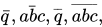
\bar{q}, \bar{abc}, \overline{q}, \overline{abc},
|
|
\vdash \dashv, \vDash, \Vdash, \models
|
|
\Vvdash \nvdash \nVdash \nvDash \nVDash
|
|
\ulcorner \urcorner \llcorner \lrcorner
|
|
Arrows | |
\Rrightarrow, \Lleftarrow
|
|
\Rightarrow, \nRightarrow, \Longrightarrow \implies
|
|
\Leftarrow, \nLeftarrow, \Longleftarrow
|
|
\Leftrightarrow, \nLeftrightarrow, \Longleftrightarrow \iff
|
|
\Uparrow, \Downarrow, \Updownarrow
|
|
\rightarrow \to, \nrightarrow, \longrightarrow
|
|
\leftarrow \gets, \nleftarrow, \longleftarrow
|
|
\leftrightarrow, \nleftrightarrow, \longleftrightarrow
|
|
\uparrow, \downarrow, \updownarrow
|
|
\nearrow, \swarrow, \nwarrow, \searrow
|
|
\mapsto, \longmapsto
|
|
\rightharpoonup \rightharpoondown \leftharpoonup \leftharpoondown \upharpoonleft \upharpoonright \downharpoonleft \downharpoonright \rightleftharpoons \leftrightharpoons
|
|
\curvearrowleft \circlearrowleft \Lsh \upuparrows \rightrightarrows \rightleftarrows \rightarrowtail \looparrowright
|
|
\curvearrowright \circlearrowright \Rsh \downdownarrows \leftleftarrows \leftrightarrows \leftarrowtail \looparrowleft
|
|
\hookrightarrow \hookleftarrow \multimap \leftrightsquigarrow \rightsquigarrow \twoheadrightarrow \twoheadleftarrow
|
|
Special | |
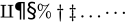
\amalg \P \S \% \dagger \ddagger \ldots \cdots
|
|
\smile \frown \wr \triangleleft \triangleright
|
|
\diamondsuit, \heartsuit, \clubsuit, \spadesuit, \Game, \flat, \natural, \sharp
|
|
Unsorted (new stuff) | |
\diagup \diagdown \centerdot \ltimes \rtimes \leftthreetimes \rightthreetimes
|
|
\eqcirc \circeq \triangleq \bumpeq \Bumpeq \doteqdot \risingdotseq \fallingdotseq
|
|
\intercal \barwedge \veebar \doublebarwedge \between \pitchfork
|
|
\vartriangleleft \ntriangleleft \vartriangleright \ntriangleright
|
|
\trianglelefteq \ntrianglelefteq \trianglerighteq \ntrianglerighteq
|
|
























![{\displaystyle \surd ,{\sqrt {2}},{\sqrt[{n}]{}},{\sqrt[{3}]{x^{3}+y^{3} \over 2}}\!}](https://restbase.calebcooper.ie/pool.calebcooper.ie/v1/media/math/render/svg/c9d0eb602bb67c297148e7454c160c7750cf84d7)
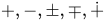




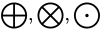





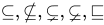
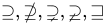


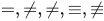







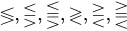


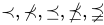
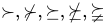


























For a little more semantics on these symbols, see the brief TeX Cookbook.
Larger expressions
Subscripts, superscripts, integrals
| Feature | Syntax | How it looks rendered |
|---|---|---|
| Superscript | a^2 |
|
| Subscript | a_2 |
|
| Grouping | 10^{30} a^{2+2} |
|
a_{i,j} b_{f'} |
||
| Combining sub & super without and with horizontal separation | x_2^3 |
|
{x_2}^3 |
||
| Super super | 10^{10^{8}} |
|
| Preceding and/or additional sub & super | \sideset{_1^2}{_3^4}\prod_a^b |
|
{}_1^2\!\Omega_3^4 |
||
| Stacking | \overset{\alpha}{\omega} |
|
\underset{\alpha}{\omega} |
||
\overset{\alpha}{\underset{\gamma}{\omega}} |
||
\stackrel{\alpha}{\omega} |
||
| Derivatives | x', y'', f', f'' |
|
x^\prime, y^{\prime\prime} |
||
| Derivative dots | \dot{x}, \ddot{x} |
|
| Underlines, overlines, vectors | \hat a \ \bar b \ \vec c |
|
\overrightarrow{a b} \ \overleftarrow{c d} \ \widehat{d e f} |
||
\overline{g h i} \ \underline{j k l} |
||
| Arc (workaround) | \overset{\frown} {AB} |
|
| Arrows | A \xleftarrow{n+\mu-1} B \xrightarrow[T]{n\pm i-1} C |
|
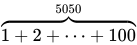
| Overbraces | \overbrace{ 1+2+\cdots+100 }^{5050} |
|
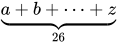
| Underbraces | \underbrace{ a+b+\cdots+z }_{26} |
|
| Sum | \sum_{k=1}^N k^2 |
|
Sum (force \textstyle)
|
\textstyle \sum_{k=1}^N k^2 |
|
Sum in a fraction (default \textstyle)
|
\frac{\sum_{k=1}^N k^2}{a} |
|
Sum in a fraction (force \displaystyle)
|
\frac{\displaystyle \sum_{k=1}^N k^2}{a} |
|
| Sum in a fraction (alternative limits style) | \frac{\sum\limits^{^N}_{k=1} k^2}{a} |
|
| Product | \prod_{i=1}^N x_i |
|
Product (force \textstyle)
|
\textstyle \prod_{i=1}^N x_i |
|
| Coproduct | \coprod_{i=1}^N x_i |
|
Coproduct (force \textstyle)
|
\textstyle \coprod_{i=1}^N x_i |
|
| Limit | \lim_{n \to \infty}x_n |
|
Limit (force \textstyle)
|
\textstyle \lim_{n \to \infty}x_n |
|
| Integral | \int\limits_{1}^{3}\frac{e^3/x}{x^2}\, dx |
|
| Integral (alternative limits style) | \int_{1}^{3}\frac{e^3/x}{x^2}\, dx |
|
Integral (force \textstyle)
|
\textstyle \int\limits_{-N}^{N} e^x\, dx |
|
Integral (force \textstyle, alternative limits style)
|
\textstyle \int_{-N}^{N} e^x\, dx |
|
| Double integral | \iint\limits_D \, dx\,dy |
|
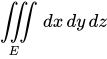
| Triple integral | \iiint\limits_E \, dx\,dy\,dz |
|
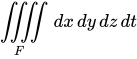
| Quadruple integral | \iiiint\limits_F \, dx\,dy\,dz\,dt |
|
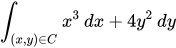
| Line or path integral | \int_{(x,y)\in C} x^3\, dx + 4y^2\, dy |
|
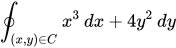
| Closed line or path integral | \oint_{(x,y)\in C} x^3\, dx + 4y^2\, dy |
|
| Intersections | \bigcap_{i=_1}^n E_i |
|
| Unions | \bigcup_{i=_1}^n E_i |


![{\displaystyle A\xleftarrow {n+\mu -1} B{\xrightarrow[{T}]{n\pm i-1}}C}](https://restbase.calebcooper.ie/pool.calebcooper.ie/v1/media/math/render/svg/837c12e4e106c9d1ce83213af699012005aeffb6)




Fractions, matrices, multilines
|
Feature |
Syntax |
How it looks rendered |
|---|---|---|
|
Fractions |
\frac{1}{2}=0.5
|
|
|
Small ("text style") fractions |
\tfrac{1}{2} = 0.5
|
|
|
Large ("display style") fractions |
\dfrac{k}{k-1} = 0.5
|
|
|
Mixture of large and small fractions |
\dfrac{ \tfrac{1}{2}[1-(\tfrac{1}{2})^n] }{ 1-\tfrac{1}{2} } = s_n
|
|
|
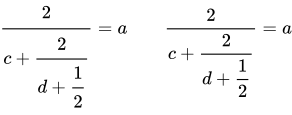
Continued fractions (note the difference in formatting) |
\cfrac{2}{ c + \cfrac{2}{ d + \cfrac{1}{2} } } = a
\qquad
\dfrac{2}{ c + \dfrac{2}{ d + \dfrac{1}{2} } } = a
|
|
|
Binomial coefficients |
\binom{n}{k}
|
|
|
Small ("text style") binomial coefficients |
\tbinom{n}{k}
|
|
|
Large ("display style") binomial coefficients |
\dbinom{n}{k}
|
|
|
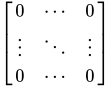
Matrices |
\begin{matrix}
x & y \\
z & v
\end{matrix}
|
|
\begin{vmatrix}
x & y \\
z & v
\end{vmatrix}
|
||
\begin{Vmatrix}
x & y \\
z & v
\end{Vmatrix}
|
||
\begin{bmatrix}
0      & \cdots & 0      \\
\vdots & \ddots & \vdots \\
0      & \cdots & 0
\end{bmatrix}
|
||
\begin{Bmatrix}
x & y \\
z & v
\end{Bmatrix}
|
||
\begin{pmatrix}
x & y \\
z & v
\end{pmatrix}
|
||
\bigl( \begin{smallmatrix}
a&b\\ c&d
\end{smallmatrix} \bigr)
|
||
|
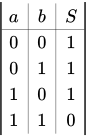
Arrays |
\begin{array}{|c|c||c|} a & b & S \\
\hline
0&0&1\\
0&1&1\\
1&0&1\\
1&1&0
\end{array}
|
|
|
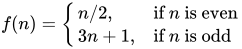
Cases |
f(n) =
\begin{cases}
n/2,  & \mbox{if }n\mbox{ is even} \\
3n+1, & \mbox{if }n\mbox{ is odd}
\end{cases}
|
|
|
System of equations |
\begin{cases}
3x + 5y +  z &= 1 \\
7x - 2y + 4z &= 2 \\
-6x + 3y + 2z &= 3
\end{cases}
|
|
|
Breaking up a long expression so it wraps when necessary |
<math>f(x) = \sum_{n=0}^\infty a_n x^n</math>
<math>= a_0 + a_1x + a_2x^2 + \cdots</math>
|
|
|
Multiline equations |
\begin{align}
f(x) & = (a+b)^2 \\
& = a^2+2ab+b^2
\end{align}
|
|
\begin{alignat}{2}
f(x) & = (a-b)^2 \\
& = a^2-2ab+b^2
\end{alignat}
|
||
|
Multiline equations with aligment specified (left, center, right) |
\begin{array}{lcl}
z        & = & a \\
f(x,y,z) & = & x + y + z
\end{array}
|
|
\begin{array}{lcr}
z        & = & a \\
f(x,y,z) & = & x + y + z
\end{array}
|


![{\displaystyle {\dfrac {{\tfrac {1}{2}}[1-({\tfrac {1}{2}})^{n}]}{1-{\tfrac {1}{2}}}}=s_{n}}](https://restbase.calebcooper.ie/pool.calebcooper.ie/v1/media/math/render/svg/18ad3db12156170b50a4e6cd198305290f8f84f3)




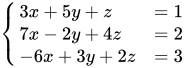
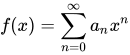

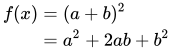
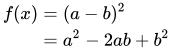
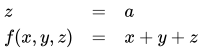
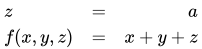
Parenthesizing big expressions, brackets, bars
|
Feature !! Syntax !! How it looks rendered | ||
|---|---|---|
|
Bad |
( \frac{1}{2} )
|
|
|
Good |
\left ( \frac{1}{2} \right )
|


You can use various delimiters with \left and \right:
|
Feature |
Syntax |
How it looks rendered |
|---|---|---|
|
Parentheses |
\left ( \frac{a}{b} \right )
|
|
|
Brackets |
\left [ \frac{a}{b} \right ] \quad \left \lbrack \frac{a}{b} \right \rbrack
|
|
|
Braces (note the backslash before the braces in the code) |
\left \{ \frac{a}{b} \right \} \quad \left \lbrace \frac{a}{b} \right \rbrace
|
|
| Angle brackets | \left \langle \frac{a}{b} \right \rangle
|
|
| Bars and double bars (note: "bars" provide the absolute value function) | \left | \frac{a}{b} \right \vert \left \Vert \frac{c}{d} \right \|
|
|
| Floor and ceiling functions: | \left \lfloor \frac{a}{b} \right \rfloor \left \lceil \frac{c}{d} \right \rceil
|
|
| Slashes and backslashes | \left / \frac{a}{b} \right \backslash
|
|
| Up, down and up-down arrows | \left \uparrow \frac{a}{b} \right \downarrow \quad \left \Uparrow \frac{a}{b} \right \Downarrow \quad \left \updownarrow \frac{a}{b} \right \Updownarrow
|
|
| Delimiters can be mixed, as long as \left and \right are both used | \left [ 0,1 \right ) \left \langle \psi \right |
|
|
| Use \left. or \right. if you don't want a delimiter to appear: | \left . \frac{A}{B} \right \} \to X
|
|
| Size of the delimiters | \big( \Big( \bigg( \Bigg( \dots \Bigg] \bigg] \Big] \big] |
|
\big\{ \Big\{ \bigg\{ \Bigg\{ \dots \Bigg\rangle \bigg\rangle \Big\rangle \big\rangle
|
||
\big| \Big| \bigg| \Bigg| \dots \Bigg\| \bigg\| \Big\| \big\|
|
||
\big\lfloor \Big\lfloor \bigg\lfloor \Bigg\lfloor \dots \Bigg\rceil \bigg\rceil \Big\rceil \big\rceil
|
||
\big\uparrow \Big\uparrow \bigg\uparrow \Bigg\uparrow \dots \Bigg\Downarrow \bigg\Downarrow \Big\Downarrow \big\Downarrow
|
||
\big\updownarrow \Big\updownarrow \bigg\updownarrow \Bigg\updownarrow \dots \Bigg\Updownarrow \bigg\Updownarrow \Big\Updownarrow \big\Updownarrow
|
||
\big / \Big / \bigg / \Bigg / \dots \Bigg\backslash \bigg\backslash \Big\backslash \big\backslash
|

![{\displaystyle \left[{\frac {a}{b}}\right]\quad \left\lbrack {\frac {a}{b}}\right\rbrack }](https://restbase.calebcooper.ie/pool.calebcooper.ie/v1/media/math/render/svg/8680e564275ad3a1c6179240f28c07f34f7b2858)
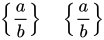


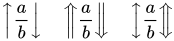


![{\displaystyle {\big (}{\Big (}{\bigg (}{\Bigg (}\dots {\Bigg ]}{\bigg ]}{\Big ]}{\big ]}}](https://restbase.calebcooper.ie/pool.calebcooper.ie/v1/media/math/render/svg/99a1bc12a65fb66cd61b030303e928983587fa7c)
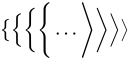

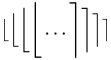
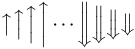
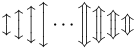
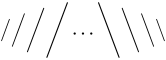
Alphabets and typefaces
Texvc cannot render arbitrary Unicode characters. Those it can handle can be entered by the expressions below. For others, such as Cyrillic, they can be entered as Unicode or HTML entities in running text, but cannot be used in displayed formulas.
| Greek alphabet | |
|---|---|
\Alpha \Beta \Gamma \Delta \Epsilon \Zeta
|
|
\Eta \Theta \Iota \Kappa \Lambda \Mu
|
|
\Nu \Xi \Omicron \Pi \Rho \Sigma \Tau
|
|
\Upsilon \Phi \Chi \Psi \Omega
|
|
\alpha \beta \gamma \delta \epsilon \zeta
|
|
\eta \theta \iota \kappa \lambda \mu
|
|
\nu \xi \omicron \pi \rho \sigma \tau
|
|
\upsilon \phi \chi \psi \omega
|
|
\varepsilon \digamma \vartheta \varkappa
|
|
\varpi \varrho \varsigma \varphi
|
|
| Blackboard Bold/Scripts | |
\mathbb{A} \mathbb{B} \mathbb{C} \mathbb{D} \mathbb{E} \mathbb{F} \mathbb{G}
|
|
\mathbb{H} \mathbb{I} \mathbb{J} \mathbb{K} \mathbb{L} \mathbb{M}
|
|
\mathbb{N} \mathbb{O} \mathbb{P} \mathbb{Q} \mathbb{R} \mathbb{S} \mathbb{T}
|
|
\mathbb{U} \mathbb{V} \mathbb{W} \mathbb{X} \mathbb{Y} \mathbb{Z}
|
|
\C \N \Q \R \Z
|
|
| boldface (vectors) | |
\mathbf{A} \mathbf{B} \mathbf{C} \mathbf{D} \mathbf{E} \mathbf{F} \mathbf{G}
|
|
\mathbf{H} \mathbf{I} \mathbf{J} \mathbf{K} \mathbf{L} \mathbf{M}
|
|
\mathbf{N} \mathbf{O} \mathbf{P} \mathbf{Q} \mathbf{R} \mathbf{S} \mathbf{T}
|
|
\mathbf{U} \mathbf{V} \mathbf{W} \mathbf{X} \mathbf{Y} \mathbf{Z}
|
|
\mathbf{a} \mathbf{b} \mathbf{c} \mathbf{d} \mathbf{e} \mathbf{f} \mathbf{g}
|
|
\mathbf{h} \mathbf{i} \mathbf{j} \mathbf{k} \mathbf{l} \mathbf{m}
|
|
\mathbf{n} \mathbf{o} \mathbf{p} \mathbf{q} \mathbf{r} \mathbf{s} \mathbf{t}
|
|
\mathbf{u} \mathbf{v} \mathbf{w} \mathbf{x} \mathbf{y} \mathbf{z}
|
|
\mathbf{0} \mathbf{1} \mathbf{2} \mathbf{3} \mathbf{4}
|
|
\mathbf{5} \mathbf{6} \mathbf{7} \mathbf{8} \mathbf{9}
|
|
| Boldface (greek) | |
\boldsymbol{\Alpha} \boldsymbol{\Beta} \boldsymbol{\Gamma} \boldsymbol{\Delta} \boldsymbol{\Epsilon} \boldsymbol{\Zeta}
|
|
\boldsymbol{\Eta} \boldsymbol{\Theta} \boldsymbol{\Iota} \boldsymbol{\Kappa} \boldsymbol{\Lambda} \boldsymbol{\Mu}
|
|
\boldsymbol{\Nu} \boldsymbol{\Xi} \boldsymbol{\Pi} \boldsymbol{\Rho} \boldsymbol{\Sigma} \boldsymbol{\Tau}
|
|
\boldsymbol{\Upsilon} \boldsymbol{\Phi} \boldsymbol{\Chi} \boldsymbol{\Psi} \boldsymbol{\Omega}
|
|
\boldsymbol{\alpha} \boldsymbol{\beta} \boldsymbol{\gamma} \boldsymbol{\delta} \boldsymbol{\epsilon} \boldsymbol{\zeta}
|
|
\boldsymbol{\eta} \boldsymbol{\theta} \boldsymbol{\iota} \boldsymbol{\kappa} \boldsymbol{\lambda} \boldsymbol{\mu}
|
|
\boldsymbol{\nu} \boldsymbol{\xi} \boldsymbol{\pi} \boldsymbol{\rho} \boldsymbol{\sigma} \boldsymbol{\tau}
|
|
\boldsymbol{\upsilon} \boldsymbol{\phi} \boldsymbol{\chi} \boldsymbol{\psi} \boldsymbol{\omega}
|
|
\boldsymbol{\varepsilon} \boldsymbol{\digamma} \boldsymbol{\vartheta} \boldsymbol{\varkappa}
|
|
\boldsymbol{\varpi} \boldsymbol{\varrho} \boldsymbol{\varsigma} \boldsymbol{\varphi}
|
|
| Italics | |
\mathit{A} \mathit{B} \mathit{C} \mathit{D} \mathit{E} \mathit{F} \mathit{G}
|
|
\mathit{H} \mathit{I} \mathit{J} \mathit{K} \mathit{L} \mathit{M}
|
|
\mathit{N} \mathit{O} \mathit{P} \mathit{Q} \mathit{R} \mathit{S} \mathit{T}
|
|
\mathit{U} \mathit{V} \mathit{W} \mathit{X} \mathit{Y} \mathit{Z}
|
|
\mathit{a} \mathit{b} \mathit{c} \mathit{d} \mathit{e} \mathit{f} \mathit{g}
|
|
\mathit{h} \mathit{i} \mathit{j} \mathit{k} \mathit{l} \mathit{m}
|
|
\mathit{n} \mathit{o} \mathit{p} \mathit{q} \mathit{r} \mathit{s} \mathit{t}
|
|
\mathit{u} \mathit{v} \mathit{w} \mathit{x} \mathit{y} \mathit{z}
|
|
\mathit{0} \mathit{1} \mathit{2} \mathit{3} \mathit{4}
|
|
\mathit{5} \mathit{6} \mathit{7} \mathit{8} \mathit{9}
|
|
| Roman typeface | |
\mathrm{A} \mathrm{B} \mathrm{C} \mathrm{D} \mathrm{E} \mathrm{F} \mathrm{G}
|
|
\mathrm{H} \mathrm{I} \mathrm{J} \mathrm{K} \mathrm{L} \mathrm{M}
|
|
\mathrm{N} \mathrm{O} \mathrm{P} \mathrm{Q} \mathrm{R} \mathrm{S} \mathrm{T}
|
|
\mathrm{U} \mathrm{V} \mathrm{W} \mathrm{X} \mathrm{Y} \mathrm{Z}
|
|
\mathrm{a} \mathrm{b} \mathrm{c} \mathrm{d} \mathrm{e} \mathrm{f} \mathrm{g}
|
|
\mathrm{h} \mathrm{i} \mathrm{j} \mathrm{k} \mathrm{l} \mathrm{m}
|
|
\mathrm{n} \mathrm{o} \mathrm{p} \mathrm{q} \mathrm{r} \mathrm{s} \mathrm{t}
|
|
\mathrm{u} \mathrm{v} \mathrm{w} \mathrm{x} \mathrm{y} \mathrm{z}
|
|
\mathrm{0} \mathrm{1} \mathrm{2} \mathrm{3} \mathrm{4}
|
|
\mathrm{5} \mathrm{6} \mathrm{7} \mathrm{8} \mathrm{9}
|
|
| Fraktur typeface | |
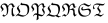
\mathfrak{A} \mathfrak{B} \mathfrak{C} \mathfrak{D} \mathfrak{E} \mathfrak{F} \mathfrak{G}
|
|
\mathfrak{H} \mathfrak{I} \mathfrak{J} \mathfrak{K} \mathfrak{L} \mathfrak{M}
|
|
\mathfrak{N} \mathfrak{O} \mathfrak{P} \mathfrak{Q} \mathfrak{R} \mathfrak{S} \mathfrak{T}
|
|
\mathfrak{U} \mathfrak{V} \mathfrak{W} \mathfrak{X} \mathfrak{Y} \mathfrak{Z}
|
|
\mathfrak{a} \mathfrak{b} \mathfrak{c} \mathfrak{d} \mathfrak{e} \mathfrak{f} \mathfrak{g}
|
|
\mathfrak{h} \mathfrak{i} \mathfrak{j} \mathfrak{k} \mathfrak{l} \mathfrak{m}
|
|
\mathfrak{n} \mathfrak{o} \mathfrak{p} \mathfrak{q} \mathfrak{r} \mathfrak{s} \mathfrak{t}
|
|
\mathfrak{u} \mathfrak{v} \mathfrak{w} \mathfrak{x} \mathfrak{y} \mathfrak{z}
|
|
\mathfrak{0} \mathfrak{1} \mathfrak{2} \mathfrak{3} \mathfrak{4}
|
|
\mathfrak{5} \mathfrak{6} \mathfrak{7} \mathfrak{8} \mathfrak{9}
|
|
| Calligraphy/Script | |
\mathcal{A} \mathcal{B} \mathcal{C} \mathcal{D} \mathcal{E} \mathcal{F} \mathcal{G}
|
|
\mathcal{H} \mathcal{I} \mathcal{J} \mathcal{K} \mathcal{L} \mathcal{M}
|
|
\mathcal{N} \mathcal{O} \mathcal{P} \mathcal{Q} \mathcal{R} \mathcal{S} \mathcal{T}
|
|
\mathcal{U} \mathcal{V} \mathcal{W} \mathcal{X} \mathcal{Y} \mathcal{Z}
|
|
| Hebrew | |
\aleph \beth \gimel \daleth
|
|













| Feature | Syntax | How it looks rendered | |
|---|---|---|---|
| non-italicised characters | \mbox{abc}
|
||
| mixed italics (bad) | \mbox{if} n \mbox{is even}
|
||
| mixed italics (good) | \mbox{if }n\mbox{ is even}
|
||
| mixed italics (more legible: ~ is a non-breaking space, while "\ " forces a space) | \mbox{if}~n\ \mbox{is even}
|
||


Color
Equations can use color with the \color command. For example,
| How it looks rendered | Syntax | Feature |
|---|---|---|
{\color{Blue}x^2}+{\color{Orange}2x}-{\color{LimeGreen}1}
|
||
x=\frac{{\color{Blue}-b}\pm\sqrt{\color{Red}b^2-4ac}}{\color{Green}2a}
|

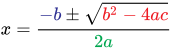
The \color command colors all symbols to its right.
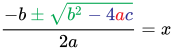
However, if the \color command is enclosed in a pair of braces (e.g. {\color{Red}...}) then no symbols outside of those braces are affected.
| How it looks rendered | Syntax | Feature |
|---|---|---|
x\color{red}\neq y=z
|
Colors red everything to the right of | |
x{\color{red}\neq} y=z
|
||
x\color{red}\neq\color{black} y=z
|
||
\frac{-b\color{Green}\pm\sqrt{b^2\color{Blue}-4{\color{Red}a}c}}{2a}=x
|
The outermost braces in {\color{Red}a}c limit the affect of \color{Red} to the symbol a. Similarly, \color{Blue} does not affect any symbols outside of the \sqrt{} that encloses it, and \color{Green} does not affect any symbols outside of the numerator.
|


There are several alternate notations styles
| How it looks rendered | Syntax | Feature |
|---|---|---|
{\color{Blue}x^2}+{\color{Orange}2x}-{\color{LimeGreen}1}
|
works with both texvc and MathJax | |
\color{Blue}x^2\color{Black}+\color{Orange}2x\color{Black}-\color{LimeGreen}1
|
works with both texvc and MathJax | |
\color{Blue}{x^2}+\color{Orange}{2x}-\color{LimeGreen}{1}
|
only works with MathJax |


Some color names are predeclared according to the following table, you can use them directly for the rendering of formulas (or for declaring the intended color of the page background).
Color should not be used as the only way to identify something, because it will become meaningless on black-and-white media or for color-blind people.
Latex does not have a command for setting the background color. The most effective way of setting a background color is by setting a CSS styling rule for a table cell:
{| class="wikitable" align="center"
| style="background-color: gray;"      | <math>x^2</math>
| style="background-color: Goldenrod;" | <math>y^3</math>
|}
Rendered as:


Custom colors can be defined using:
\definecolor{myorange}{rgb}{1,0.65,0.4}\color{myorange}e^{i \pi}\color{Black} + 1 = 0

Formatting issues
Spacing
Note that TeX handles most spacing automatically, but you may sometimes want manual control.
| Feature | Syntax | How it looks rendered |
|---|---|---|
| double quad space | a \qquad b
|
|
| quad space | a \quad b
|
|
| text space | a\ b
|
|
| text space without PNG conversion | a \mbox{ } b
|
|
| large space | a\;b
|
|
| medium space | a\>b
|
[not supported] |
| small space | a\,b
|
|
| no space | ab
|
|
| small negative space | a\!b
|


Automatic spacing may be broken in very long expressions (because they produce an overfull hbox in TeX):
<math>0+1+2+3+4+5+6+7+8+9+10+11+12+13+14+15+16+17+18+19+20+\cdots</math>

This can be remedied by putting a pair of braces { } around the whole expression:
<math>{0+1+2+3+4+5+6+7+8+9+10+11+12+13+14+15+16+17+18+19+20+\cdots}</math>

Alignment with normal text flow
Due to the default css
img.tex { vertical-align: middle; }
an inline expression like should look good.

If you need to align it otherwise, use <math style="vertical-align:-100%;">...</math> and play with the vertical-align argument until you get it right; however, how it looks may depend on the browser and the browser settings.
Also note that if you rely on this workaround, if/when the rendering on the server gets fixed in future releases, as a result of this extra manual offset your formulae will suddenly be aligned incorrectly. So use it sparingly, if at all.
Chemistry
Technically, <math chem>...</math> is a math tag with the extension mhchem enabled, according to the MathJax documentation.
Note, that the commands \cee and \cf are disabled, because they are marked as deprecated in the mhchem LaTeX package documentation.
Please note that there are still major issues with mhchem support in MediaWiki.
Molecular and Condensed formula | ||||||||||||||||
|---|---|---|---|---|---|---|---|---|---|---|---|---|---|---|---|---|
| ||||||||||||||||
Bonds | ||||||||||||||||
| ||||||||||||||||
Charges | ||||||||||||||||
| ||||||||||||||||
Addition Compounds and Stoichiometric Numbers | ||||||||||||||||
| ||||||||||||||||
Greek characters | ||||||||||||||||
| ||||||||||||||||
Isotopes | ||||||||||||||||
| ||||||||||||||||
States | ||||||||||||||||
| ||||||||||||||||






![{\displaystyle [AgCl2]-}](https://restbase.calebcooper.ie/pool.calebcooper.ie/v1/media/math/render/svg/72ce19d0e51a0b28571c76c16b95a862d4257953)







![{\displaystyle [Fe(\eta ^{5}-C5H5)2]}](https://restbase.calebcooper.ie/pool.calebcooper.ie/v1/media/math/render/svg/eff069dd761f8a3a6314c855cfd62c699082866e)


(Italic) Math
| mhchem |
|
|---|

Oxidation States
| mhchem |
|
|---|

Precipitate
| mhchem |
| ||||
|---|---|---|---|---|---|
| Equivalent HTML |
|

Reaction Arrows
| Markup | Renders as |
|---|---|
<math chem>A ->[x] B</math> |
|
|
|
![{\displaystyle A->[x]B}](https://restbase.calebcooper.ie/pool.calebcooper.ie/v1/media/math/render/svg/60e051fcd68146fd7b4cb22707edbb607cc2f455)
![{\displaystyle A->[{\text{text above}}][{\text{text below}}]B}](https://restbase.calebcooper.ie/pool.calebcooper.ie/v1/media/math/render/svg/dc09e320db42ac2b7c4b985eedd102ea29832644)
| Markup | Renders as |
|---|---|
<math>\rightarrow</math> |
|
<math>\rightleftarrows</math> |
|
<math>\rightleftharpoons</math> |
|
<math>\leftrightarrow</math> |
|
<math>\longrightarrow</math> <math chem>-></math> |
|
<math chem><=></math> |
|
<math>\longleftrightarrow</math> <math chem><-></math> |
|


Examples of implemented TeX formulas
Quadratic polynomial
| Markup | |
|---|---|
| Renders as |

Quadratic formula
| Markup | |
|---|---|
| Renders as |
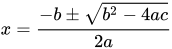
Tall parentheses and fractions
| Markup | |
|---|---|
| Renders as |
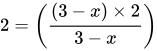
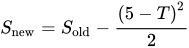
| Markup | |
|---|---|
| Renders as |
Integrals
| Markup | |
|---|---|
| Renders as |

| Markup | |
|---|---|
| Renders as |
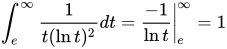
Matrices and determinants
| Markup | |
|---|---|
| Renders as |

Summation
| Markup | |
|---|---|
| Renders as |

| Markup | |
|---|---|
| Renders as |
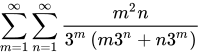
Differential equation
| Markup | |
|---|---|
| Renders as |

Complex numbers
| Markup |
|
|---|---|
| Renders as |

Limits
| Markup | |
|---|---|
| Renders as |
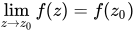
Integral equation
| Markup |
|
|---|---|
| Renders as |
![{\displaystyle \phi _{n}(\kappa )={\frac {1}{4\pi ^{2}\kappa ^{2}}}\int _{0}^{\infty }{\frac {\sin(\kappa R)}{\kappa R}}{\frac {\partial }{\partial R}}\left[R^{2}{\frac {\partial D_{n}(R)}{\partial R}}\right]\,dR}](https://restbase.calebcooper.ie/pool.calebcooper.ie/v1/media/math/render/svg/7f6695154ee0e388c6ea1da20c2e19810282251a)
Example
| Markup |
|
|---|---|
| Renders as |

Continuation and cases
| Markup |
|
|---|---|
| Renders as |
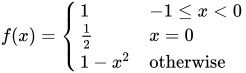
Prefixed subscript
| Markup |
|
|---|---|
| Renders as |

Fraction and small fraction
| Markup | |
|---|---|
| Renders as |

Area of a quadrilateral
| Markup | |
|---|---|
| Renders as |

Volume of a sphere-stand
| Markup | |
|---|---|
| Renders as |
![{\displaystyle V={\frac {1}{6}}\pi h\left[3\left(r_{1}^{2}+r_{2}^{2}\right)+h^{2}\right]}](https://restbase.calebcooper.ie/pool.calebcooper.ie/v1/media/math/render/svg/480eb74247c5f48886e4558d4eb5dd09e6649745)
Multiple equations
The altered newline code \\[0.6ex] below adds a vertical space between the two lines of length equal to times the height of a single 'x' character.

| Markup |
|
|---|---|
| Renders as |
![{\displaystyle {\begin{aligned}u&={\tfrac {1}{\sqrt {2}}}(x+y)\qquad &x&={\tfrac {1}{\sqrt {2}}}(u+v)\\[0.6ex]v&={\tfrac {1}{\sqrt {2}}}(x-y)\qquad &y&={\tfrac {1}{\sqrt {2}}}(u-v)\end{aligned}}}](https://restbase.calebcooper.ie/pool.calebcooper.ie/v1/media/math/render/svg/4e0308a3a70f9d0b044c9dd0541c27a130ddbeac)